
Every individual who uses this site will have the opportunity to build a myPortfolio that resides in the system.
Your myPortfolio contains a profile as well as a collection of evidence of your learning. Your evidence items can be text or files collated throughout your studies which showcase your achievements and development of learning throughout the degree program.
Your profile includes your personal information, a short biography and professional philosophy as well as links to your website or social media sites.
- Once you are logged in, navigate to your profile by clicking on your profile picture on the right of the main menu.

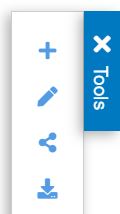
- Click on the tools button on the far right of the screen to see the editors toolbar:
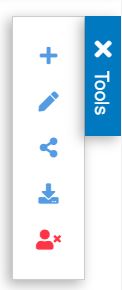
- Select the pencil icon to edit your profile.
- Make edits and select Save as draft or Publish.
- Once you are logged in, navigate to your profile by clicking on your profile picture on the right of the main menu.

- Click on the tools button on the far right of the screen to see the editors toolbar:

- Select + Add Evidence from the menu.
- Give the piece of evidence a title.
- Add content by selecting the content buttons:

- Tag your evidence by selecting a dimension (course) from the dropdown list:

- Then select a criteria. You can select more than one:
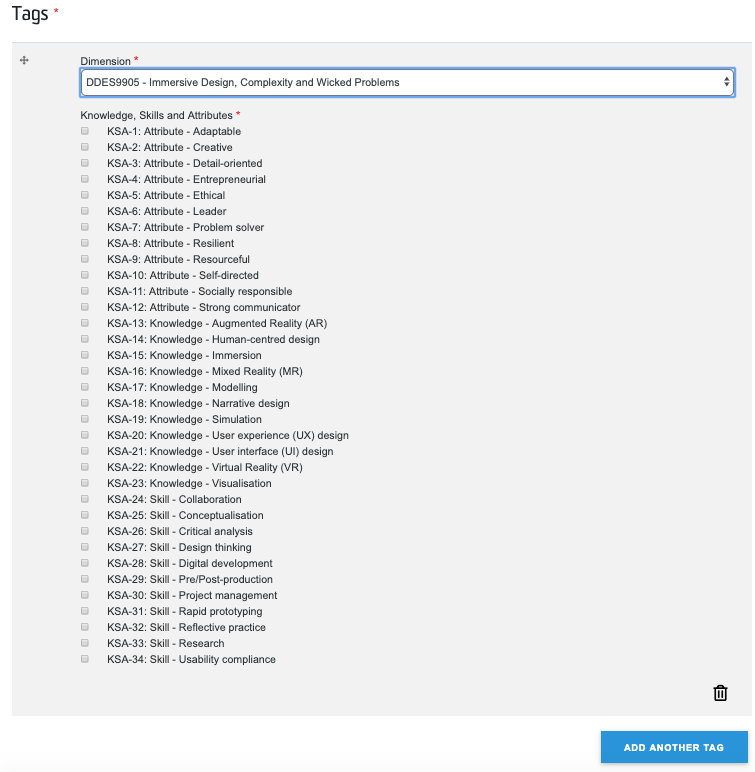
- If you would like to tag the evidence with more than one dimension, select Add another tag.
- Select 'Save as draft' or 'Publish'.
Your profile and each piece of evidence in your portfolio is published separately.
If you would like to edit your profile or evidence and save the changes without allowing others to see the changes, you can save the page as a draft version. Your last published version will be visible to all logged in users while the draft version will only be visible to you. When you are ready for others to see your updated page you will need to publish the page. To add evidence to a case in your Professional Reflection, the evidence must be published first.
To see a list of pages that have a status of draft, click on the show all drafts link under the dimensions:


You can also toggle between the draft and published version of a page by clicking on the draft view and published view buttons:

1. Copy the embed url from the video source site e.g. youtube, vimeo, the box (this is often available after selecting Share).
2. Select Add evidence from the editors toolbar:

3. Select Add video from the list of content:

4. Copy the video embed url into the embed code text box.
5. Add a caption for the video.
6. Select Save as draft or Publish.
- Copy the embed url from the audio source site e.g. soundcloud (this is often available after selecting Share)
- Select Add evidence from the editors toolbar

- Select Add audio from the list of content

- Copy the audio url into the url text box
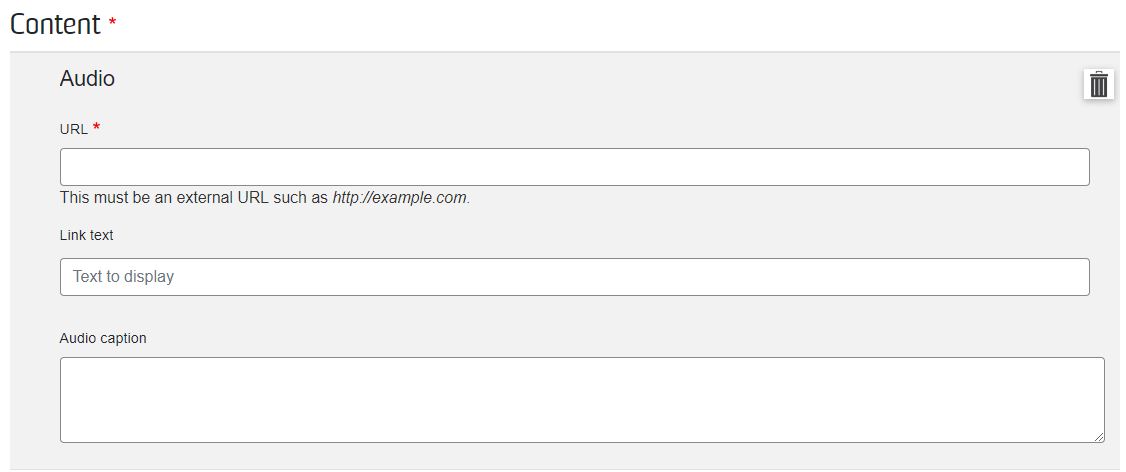
- Add link text - which is the text that will be displayed
- Add a caption
- Save the evidence as draft or publish
- Select Add evidence from the editors toolbar
- Select Add Image from the list of content

- Select Choose File
- Find your file and select it
- Select Upload
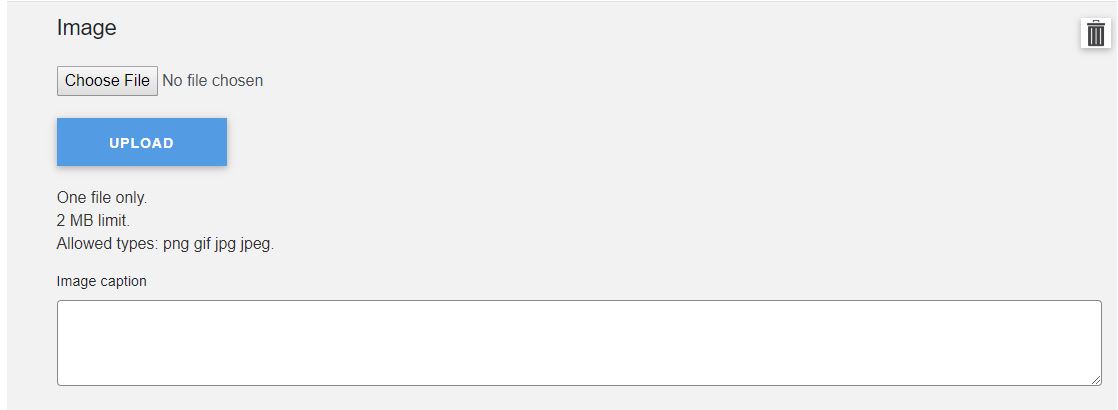
- Add an caption for the image if you like
- Save the evidence as draft or publish
The Professional Reflection tool enables students to utilise their profile and evidence created in myPortfolio MVSID to build, preview and export (as a single PDF file) a 'case' for their myPortfolio Professional Reflection (Assessment Task 3) for their core courses.
When building a reflection, students' Professional Context and Philosophy is automatically added to the top of the final PDF document, and select evidence from their profile can be added and interwoven with narrative text, all of which can be edited and re-positioned within the document. In line with the assessment task briefs, it is recommended that the maximum length of a case for reflection on your development for each core course should be no more than 1000 words.
- Once you are logged in, navigate to your profile by clicking on your profile picture on the right of the main menu.
- Click on the tools button on the far right of the screen to see the editors toolbar:

- Select the PDF icon from the menu (highlighted in black in the image above).
- The 'Professional Reflection' page that follows will show you a list of all of any previous Professional Reflections that you have created during your study. To get started, click the 'Create Professional Reflection' button.
- Add a title for your reflection. Ensure that you add the course code of the core course you are writing the reflection for to your title so you can differentiate your documents.
- You can add any notes to help you identify your document later. These are just for your reference and the notes do not get published in the final document.
- Edit your professional context & philosophy statement. This will always be at the top of each reflection that you do, so you can track your personal progress and development as you move through each core course in the program.
- Add content for your reflection. This is where you type your answers to the questions in the project brief you will be issued as your final assessment in each core course.
- In the content section, you can insert pieces of evidence that you have previously uploaded into your portfolio to support the points you make in your reflection. Add evidence by clicking the '+ Add Evidence' button at the top of the text box.
- You can add additional content blocks by pressing the 'Add Content Item' button if you wish to break your reflection into sections. You might choose to do this for each question you are asked in the assessment brief. You can add as many content items as required to build your case. For a better layout in the final document, it is recommended you add your professional reflection text first and then add supporting evidence underneath.

- 'Save' your work regularly.
- Click the 'Save and Close' button once you have finished. You will be taken back to the main Professional Reflection page, where you will see your reflection listed on the page.
- Once you are logged in, navigate to your profile by clicking on your profile picture on the right of the main menu.
- Click on the tools button on the far right of the screen to see the editors toolbar, then click the PDF icon:
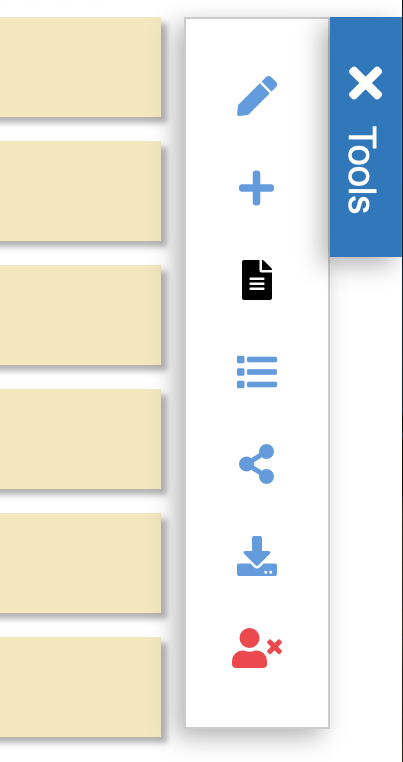
- You will see a list of reflections that you have completed on the bottom of this page. If you have not yet created a reflection, please refer to the instructions under 'How do I build a Professional Reflection document?' above.
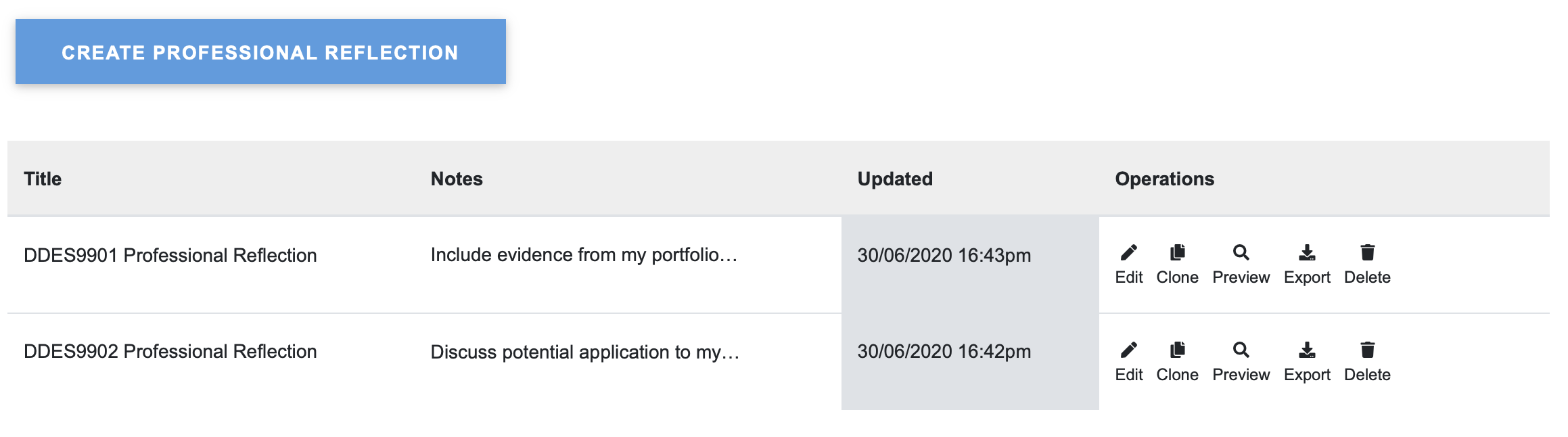
- Select the 'Export' next to the document t you want to output. This will automatically download your case as a PDF document.
- Submit to the Moodle site for your core course as instructed in the assessment brief.
You can share your profile with others outside of UNSW by generating a share link
- Go to your profile
- Select Share profile button from the tools menu


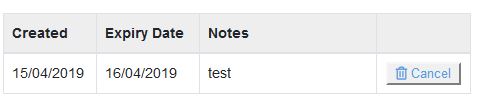
- Add notes to the share link so you can remember who the link was shared with and why

- Copy and paste the link into an email or other communication application.
Please note the link will be valid for 60 days
- Go to your profile
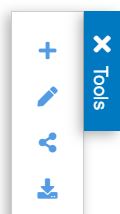
- Select Share Profile from the editors toolbar
- Click on the +Show profile sharing history link
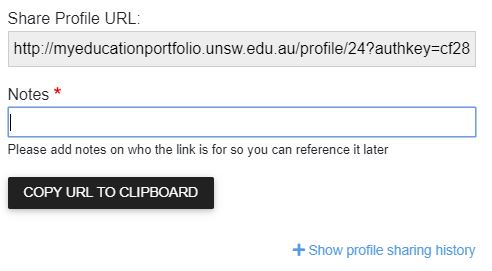
- Find the link you would like to cancel. Then select Cancel
You can export all evidence as separate files. You can also create a Professional Reflection document or 'case' that includes a reflection and selected pieces of evidence in the one document. See the separate FAQs on "myCases" for more detail on the Professional Reflection.
To export your evidence as separate files:
- Go to your profile
- Click on the export button from the editors toolbar

- Your profile and all evidence pages will be exported to a zip file. Only the latest published version will be exported.
- Click on the zip file to open it or you can locate it through file explorer under Downloads

You can only export your profile when you are on your desktop. This functionality is not available on mobile or tablet.
The system will export the latest published version of your portfolio - profile and evidence and any files that have been uploaded.
Only UNSW staff and students (with an active zID) associated with the MVSID program are able to create a portfolio. If you are not able to create a portfolio, please lodge an IT service request.
To make your portfolio visible to all users you will need to publish your profile. You will not be able to publish evidence until your profile has been published once.